

Published video tags
Reveal the tag list attached to an accessible video instead of searching through page source or browser extensions.
Paste a public YouTube video or Shorts link to reveal the tags published with it. Select useful tags, copy them in your preferred format, and research how similar videos describe their topic.
The tool keeps the job focused: enter one video link, inspect the tags that YouTube returns for that video, and copy only the phrases relevant to your own research. It does not invent tags or claim that copied tags guarantee rankings.
Reveal the tag list attached to an accessible video instead of searching through page source or browser extensions.
Use regular watch URLs, youtu.be links, mobile links, or YouTube Shorts links that contain a valid video ID.
Choose individual phrases, select every tag, or clear the selection before copying a cleaner research list.
Copy tags as a comma-separated list for YouTube Studio or one tag per line for notes and spreadsheets.
A YouTube tag extractor is an online tool that reads the tags attached to one accessible YouTube video. Those tags are part of the video metadata returned by YouTube. The output can help creators understand the vocabulary, topic variations, common misspellings, and branded phrases used by other videos in the same niche.
A tag extractor is different from a tag generator. An extractor shows metadata that already belongs to the submitted video; it does not create a new keyword list. It is also different from a hashtag extractor: hashtags normally appear in a title or description, while video tags are a separate metadata field. If a creator did not add tags, the honest result is an empty tag list.
Use extracted tags as research rather than a copy-and-paste ranking formula. YouTube states that a title, thumbnail, and description are more important for discovery, while tags can be useful for commonly misspelled terms. Relevant tags can clarify a topic, but unrelated competitor tags do not transfer another video's authority or audience.
You can use the YouTube tag extractor online in three steps. The workflow works on desktop and mobile and does not require an extension.
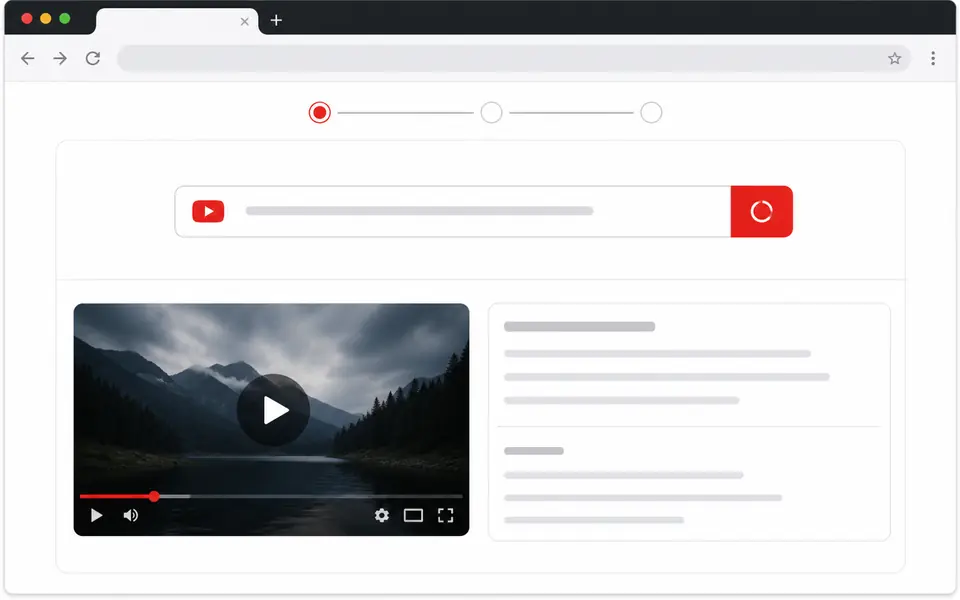
Copy a complete YouTube watch, youtu.be, mobile, live replay, or Shorts URL. Paste only one video at a time so the result remains clear.
The YouTube tag extractor displays the video title, channel, thumbnail, tag count, and character use. Select the phrases that actually match your topic.
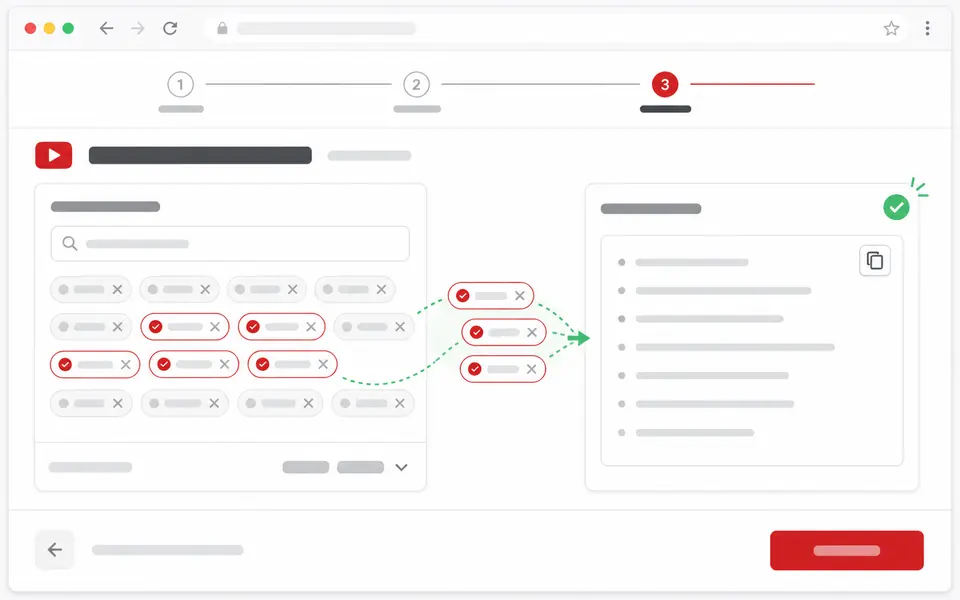
Choose comma-separated or one-per-line output, then copy every tag or only your selection. Edit the list before using it in your own upload.
The main benefit is faster, more accurate research. The page shows actual metadata when it is available and explains empty results instead of filling the screen with generated guesses.
You do not need to inspect HTML, search for a keywords field, or install a browser extension just to check one video.
The result preserves the order returned for the video, which makes it easier to compare how different creators organize their metadata.
Selectable chips let you remove channel names, unrelated brands, or phrases that do not describe your own content before copying.
The tool clearly separates extraction from generation and explains that private, unavailable, or untagged videos cannot produce a useful tag list.
A useful tag list is focused, accurate, and specific to the video you are publishing. These practices make competitor research more useful without treating tags as a shortcut.
Look for phrases that recur across genuinely similar videos. One unusual tag on one video is not evidence that the phrase is broadly useful.
Do not copy another creator's channel name or branded series name unless it truthfully belongs to your video. Keep only descriptive phrases.
Tags can help with names or terms viewers often misspell. Add a variation only when it is a realistic way people search for the same subject.
Spend more effort on the title, thumbnail, description, and actual video quality. YouTube says those signals matter more for discovery than tags.
Different creators need different outputs. These examples show when to use the YouTube tag extractor and what to do after the tags appear.
After checking tags with the YouTube tag extractor, use the related tools to inspect the same video's thumbnail, duration, or shareable timestamp without mixing those separate jobs into this page.
Direct answers about supported links, public metadata, copying, privacy, and common empty results.
Paste one complete YouTube video URL into the extractor and select Extract Tags. The page requests the video's accessible metadata and displays every published tag as a selectable chip.
Yes. The YouTube tag extractor is free to use and does not require an account, subscription, or browser extension. Normal requests use the site's shared YouTube API access.
Yes. Paste a complete YouTube Shorts link and the tool will check the underlying video metadata. Some Shorts have no published tags, so an empty result can still be correct.
The most common reason is that the creator did not add any video tags. Tags are optional. The video may also be private, deleted, restricted, unavailable, or still processing.
No. Private video metadata is not available through this public tool. If the private video belongs to you, open it in YouTube Studio while signed in to the owning account.
No. This is an online YouTube tag extractor that works in a normal desktop or mobile browser. Paste the link directly on this page instead of installing an extension.
You can view and copy published tags, but copying them exactly is rarely useful. Remove brand terms and irrelevant phrases, then keep only tags that honestly describe your own video.
Tags can help clarify a topic or common misspelling, but YouTube says they play a minimal role in discovery. Titles, thumbnails, descriptions, engagement, and video quality deserve more attention.
YouTube documents a total tag budget of 500 characters. Commas count, and multiword tags are counted as if quotation marks surround them. The result shows an estimated character total for the extracted list.
No YouTube sign-in, password, or account connection is requested. The pasted link is sent to the site server to request public metadata; failed requests may be temporarily logged for reliability and debugging.
No. A tag extractor reveals tags already published with an existing video. A tag generator creates suggestions for a new topic, which is a separate task and is not performed on this page.
No. This page focuses on the video tags field. Hashtags and descriptions are separate metadata and are not mixed into the extracted tag list.
Paste one public video or Shorts link and turn its published tags into a clean, copyable research list.
Open the YouTube Tag Extractor