

Locked 16:9 framing
The crop area keeps the standard YouTube thumbnail ratio while you reposition and zoom the source image.
Crop or fit any image to a 16:9 YouTube thumbnail, control the output size and quality, and download it without uploading the source to a server.
Image
Drag the crop frame or image, then use Zoom for precise framing.
16:9 LOCKEDThis YouTube thumbnail resizer fixes the two problems that occur when a source image does not match a video thumbnail: the image has the wrong shape, or the final file is larger than the upload target. It is not a template designer or an AI thumbnail maker. The page concentrates on framing, dimensions, format, quality, and download so the resize workflow stays quick on both desktop and mobile.
The crop area keeps the standard YouTube thumbnail ratio while you reposition and zoom the source image.
Crop fills the frame edge to edge. Fit preserves the complete image with a blurred or solid-color background.
Choose 3840×2160 or 1280×720, then export JPG, PNG, or WebP with adjustable quality where supported.
Your source and resized image stay on your device. No account, API key, or server upload is required.
A YouTube thumbnail resizer converts a source photo, screenshot, graphic, or downloaded image into a 16:9 canvas suitable for a standard video thumbnail. Resizing is not the same as stretching. A good tool either crops the source proportionally or fits the complete source inside the new canvas while preserving its original proportions.
YouTube currently recommends a 3840×2160 image with a minimum width of 640 pixels and a 16:9 ratio. The 1280×720 preset remains useful when you need a smaller HD file. Increasing a tiny source to either preset cannot restore detail that was never present, so start with the largest clean image available.
Crop to fill: best when the subject can occupy the complete frame and unimportant edges may be removed. It produces an edge-to-edge thumbnail without bars.
Fit the image: best when a face, product, logo, or text would be cut off. The original image stays complete and the unused area receives a blurred or solid background.
The complete workflow takes three steps and stays inside this page. Nothing is published to YouTube automatically; the downloaded image remains under your control.
After creating the result, use Download thumbnail to save it, or choose Preview this thumbnail . Preview opens the finished image automatically in a new tab while this YouTube thumbnail resizer keeps the current edit available for further adjustments.
Choose a JPG, PNG, or WebP image from your phone or computer. The YouTube thumbnail resizer opens it locally in your browser.
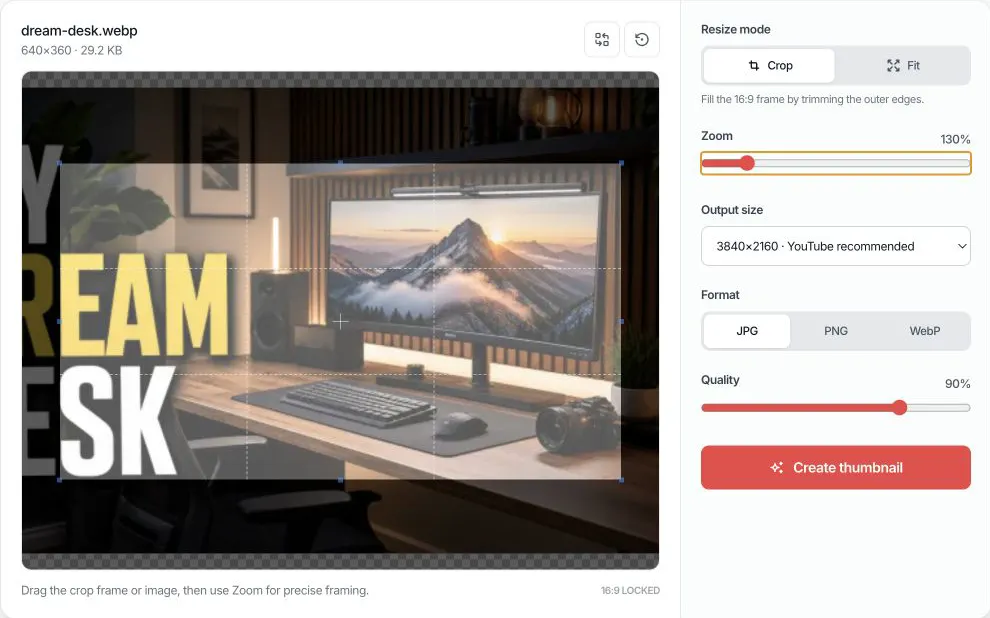
Use Crop to fill the 16:9 frame, or Fit to preserve the complete image. Drag and zoom until the subject, logo, and text are positioned safely.
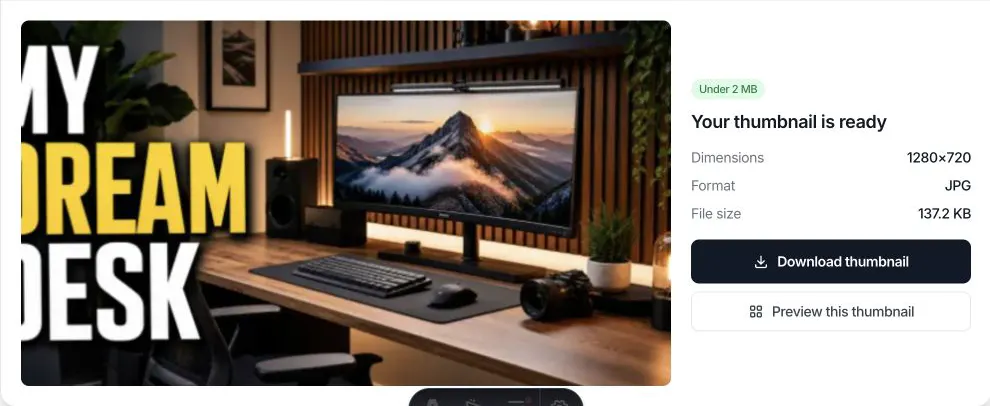
Select an output size, format, and quality. Create the thumbnail, then download it or open the finished image automatically in a new Thumbnail Preview tab.
Use Crop, move the 16:9 frame around the subject, and export a 3840×2160 JPG at 90% quality. Keep faces and essential text away from the outer edge because YouTube layouts can vary by surface.
Use Fit with a blurred background. The source remains proportional and centered while the background fills the 16:9 space. This avoids stretching logos, products, screenshots, or square artwork.
Start with JPG or WebP at 85–90% quality. If the created image is still over 2 MB, lower quality in small steps or select 1280×720. PNG may remain large for photographic content.
PNG preserves transparency and sharp graphic edges but ignores the quality slider. Review the output size, and switch to JPG when transparency is unnecessary and a smaller file matters more.
This YouTube thumbnail resizer changes framing, pixel dimensions, file format, and compression. It does not sharpen an out-of-focus photo, reconstruct missing detail, remove a watermark, publish to YouTube, or predict click-through rate. A 3840×2160 export made from a tiny source has more pixels but not more original detail.
Browser memory also varies by device. Source files are limited to 25 MB on this page to keep high-resolution export reliable, especially on mobile hardware.
Answers about 16:9 cropping, image quality, privacy, formats, and file size.
Upload the image, keep the 16:9 crop frame over the content you want, and choose an output size. Click Create thumbnail, then download the resized JPG, PNG, or WebP file.
YouTube currently recommends 3840×2160 pixels and a 16:9 aspect ratio, with a minimum width of 640 pixels. This tool also offers 1280×720 as a smaller 16:9 HD output that remains widely used.
The standard recommended aspect ratio for a YouTube video thumbnail is 16:9. This YouTube thumbnail cropper locks the frame to 16:9 so the result is not stretched.
Yes. Create the image and check the displayed output size. If it exceeds 2 MB, choose JPG or WebP, reduce the quality setting, or select the 1280×720 output and create it again.
Downscaling normally removes some pixel detail, while enlarging a small image cannot create missing detail. Start with the largest clean source available and avoid repeatedly exporting the same compressed JPG.
Choose Crop when the subject can safely fill the 16:9 frame. Choose Fit when cutting the edges would remove a face, product, logo, or important text; Fit adds a background without stretching the image.
Yes. The tool is free to use in a modern browser and does not require signup. There is no watermark on the image created by this page.
No. Image decoding, cropping, resizing, compression, and export happen locally in your browser. The tool does not send your selected image to our server or save it to an account.
No. The YouTube thumbnail resizer runs directly on this web page. It works with mouse, trackpad, and touch input, so you can crop an image on desktop or mobile without installing an extension.
JPG is a practical choice for photographs and usually creates a smaller file. PNG is useful for transparency or crisp interface graphics, while WebP can provide a smaller working file but should be checked for final YouTube Studio compatibility.
This page creates a standard 16:9 video thumbnail. Shorts use different thumbnail behavior across YouTube surfaces, so a dedicated vertical Shorts workflow should not be treated as the same job.
Yes. After creating the result, choose Preview this thumbnail. The finished image opens automatically in a new YouTube Thumbnail Preview tab while the resizer and its editing state remain open. The transfer stays in your browser, so you do not need to download and upload the image again.
Check the resized image in desktop, mobile, and suggested-video layouts.
Download available thumbnail sizes from a public YouTube video.
Understand dimensions, ratios, resolution, and current technical guidance.
Choose an image, frame it at 16:9, and download the finished thumbnail.
Back to resizer